FAQ

Is there Quick Start guide?


Please do check out the Online Quick Start Guide before getting started, to get 10+ times of productivity improvement.

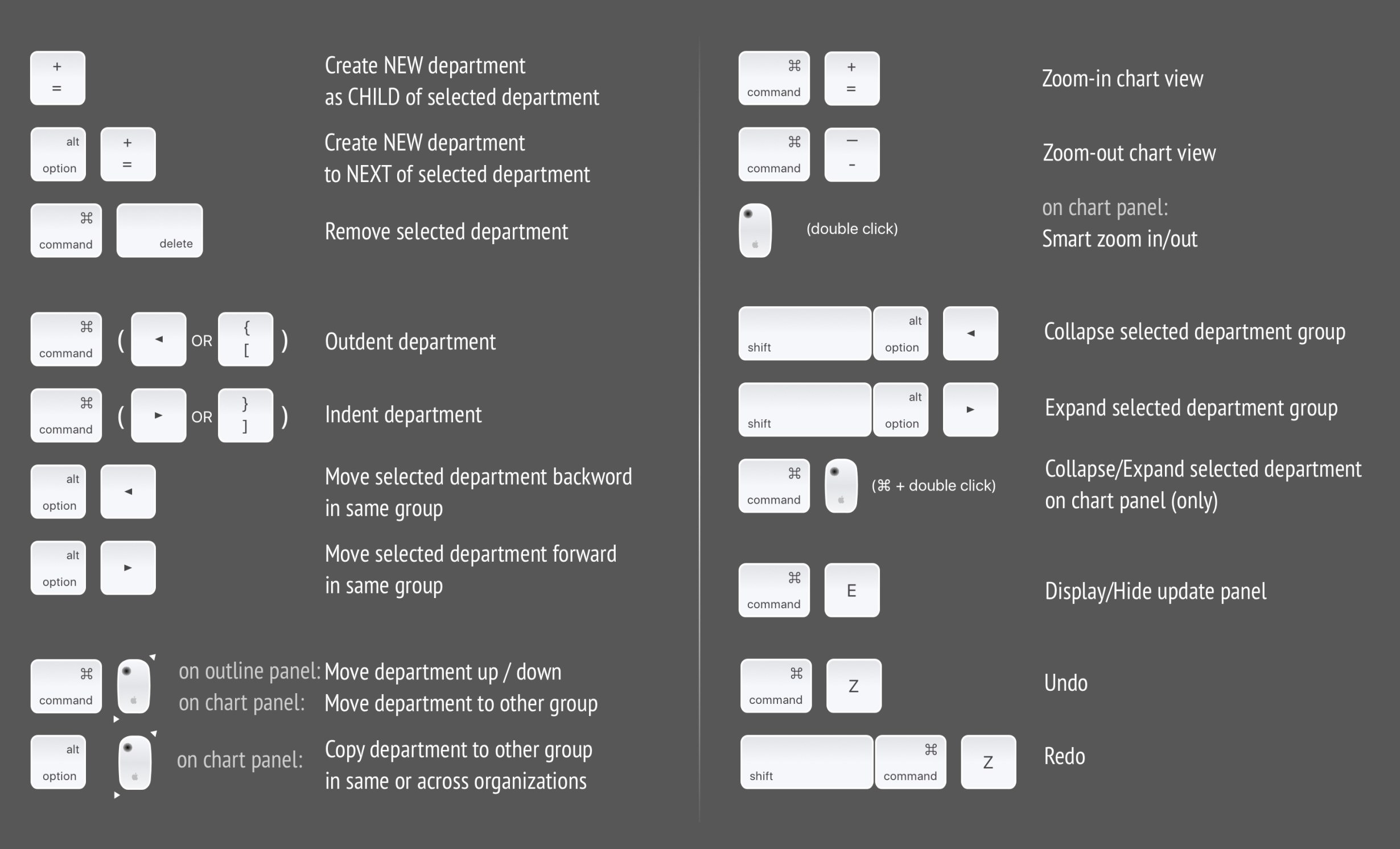
Keyboard shortcuts cheat sheet


Press ⌘⌥^ (Command + Alt + Ctrl) to show shortcut tips in the active organization chart window.
The best practice to create organization chart quickly?


OrgChart lets you manage departments in the outline, chart, and updating panels.

  • The chart panel is more intuitive for adding, moving, and removing departments with mouse gestures.
  • The outline panel acts like a grid and makes data entry more efficient.
  • The updating panel (property panel) helps you manage all properties of the selected department in one place.

Below is our recommended workflow for creating a new organization chart efficiently (this is not the only effective approach)

  • First step - enter all departments in the outline panel

    Enter all department names continuously in the outline panel. You do not need to adjust hierarchy while entering names.

  • Second step - adjust department hierarchy in the outline panel (see useful and effective operations below)

    • Select a department by clicking with the mouse or pressing the up/down keys
    • Change Outline Level
      • Use “COMMAND” + “Left Key / Right Key” to indent or outdent a department
      • Or in the chart panel, use “COMMAND” + “Mouse move” to move a department to become a child of another department.
    • Change Department Sequence
      • Use “COMMAND” + “Mouse move Up/Down” to move a department within or across department groups (if the mouse is on the selected department’s “photo” column, you do not need to press “COMMAND”; just click and move up/down to change sequence).
      • Use “OPTION” + “Left KEY / Right KEY” to move the selected department within the same department group.
  • Third step - update department properties. After the basic tree structure is complete, you can change display properties for departments in the outline, chart, and updating panels.
    • OrgChart supports applying visual styles to all children. Using this feature effectively makes organization updates much easier and faster.
    • The chart panel is more intuitive for adjusting department trees, and OrgChart for macOS supports drag-and-drop to move and copy departments
      • Use “COMMAND” + “Mouse move” to move the selected department to become a child of another department
      • Use “OPTION” + “Mouse move” to copy the selected department as a child of another department
    • Double-click is a good way to show the updating panel
    • OrgChart supports copying and pasting cell content in the outline panel. Select a cell (not in edit mode) and press “COMMAND + C” to copy; then select the same cell in another department and press “COMMAND + V” to paste.
    • OrgChart also supports copying departments: press “COMMAND + SHIFT + C” to copy the selected department and “COMMAND + SHIFT + V” to paste as a child (in the chart panel, you can also copy by gesture using “OPTION” + “MOUSE MOVE”).

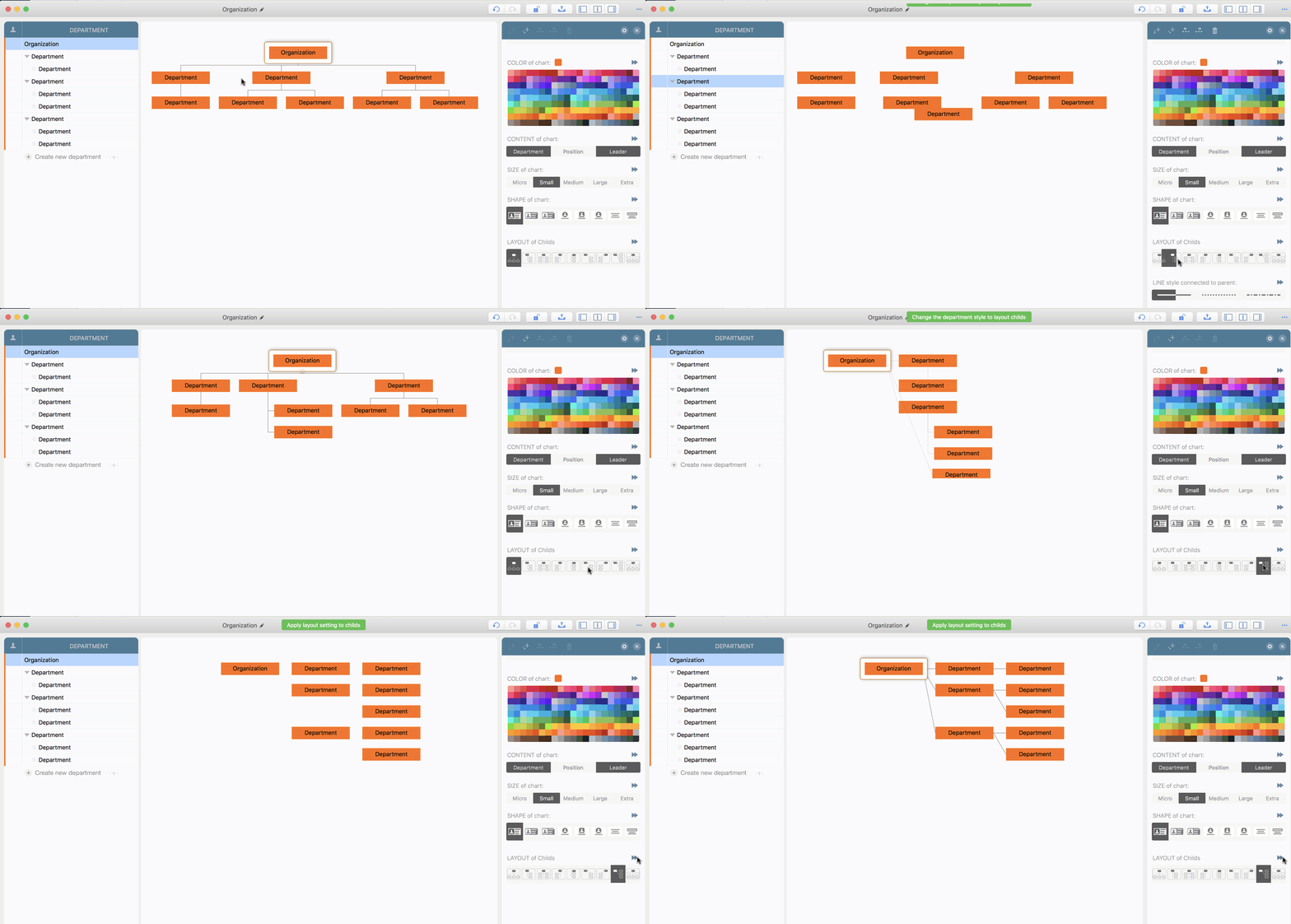
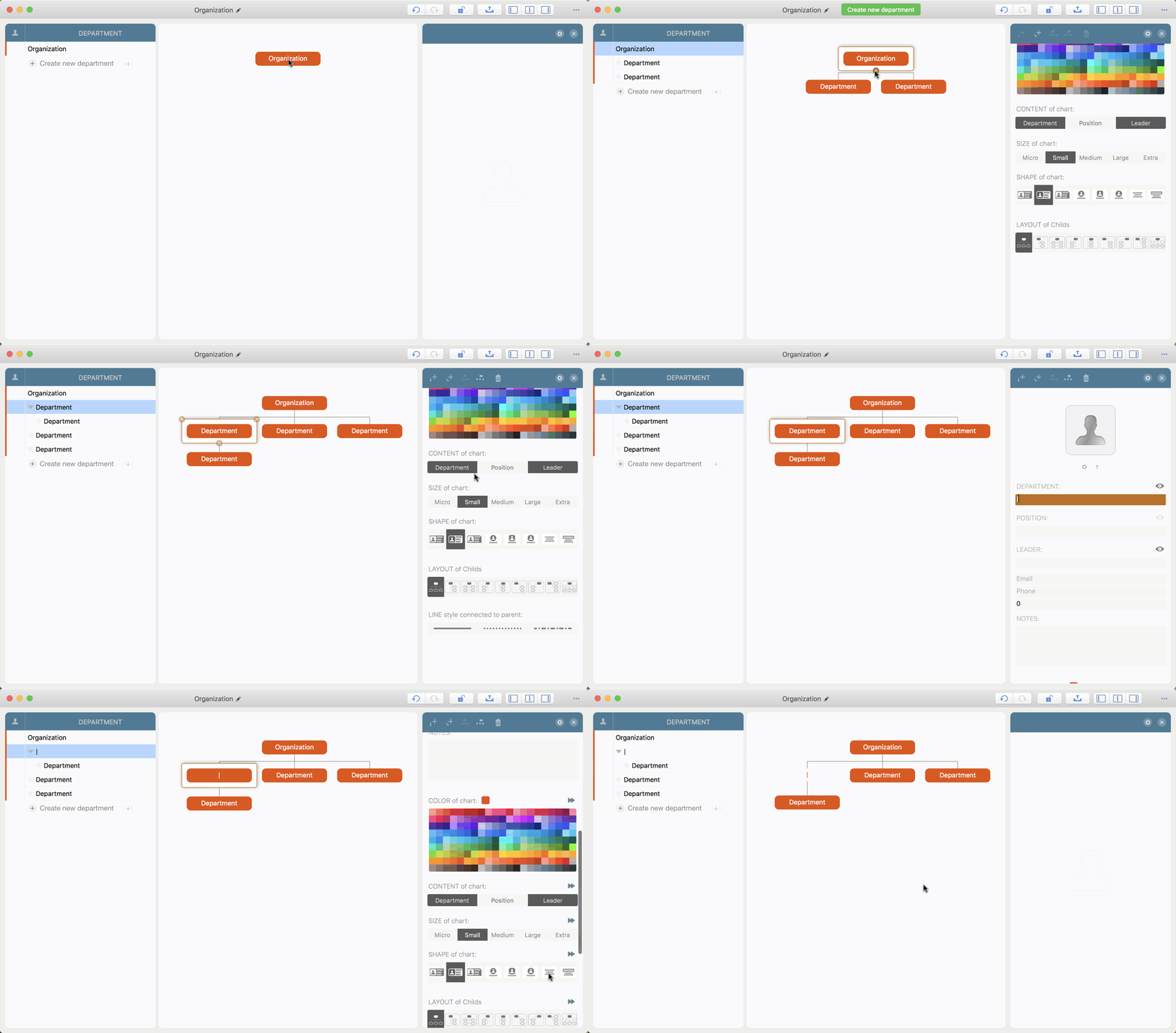
    For example, to change layout properties:
How to create direct reporting relationship between departments with level gap > 1?


OrgChart organizes departments in a tree structure, except the top level department, every department should connect and only can connect to one parent department.

For the case, if we have reporting relationship that the organization level of the child department is lower more than parent department. For example a three levels of organization structure:
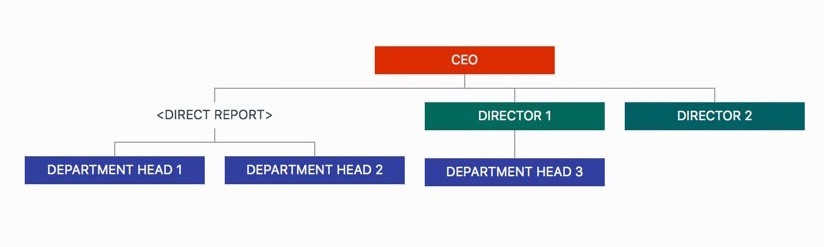
  • CEO <-- Director <-- Department Head
  • But some department heads directly report to CEO

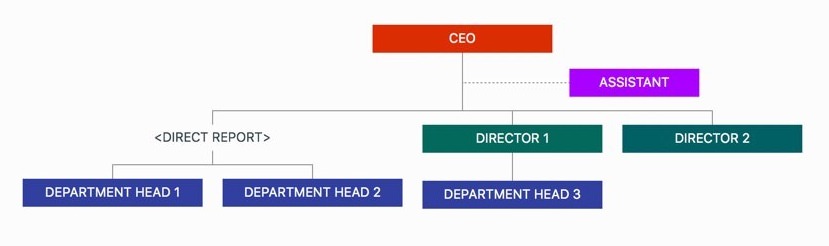
For this case, we can add a virtual department (with different display style) between the CEO and the department heads, as following an example:
How many ways to add new departments?


  • Click the “Create new department” button at the bottom of the outline panel to continuously add departments as children of the root department
  • Select a department, then press “+” to add a new child department. The new department will be selected.
  • Click the “+” icon on the selected block in the chart panel. The new department will not be selected (use this method or the previous one depending on whether you want the new department selected).
  • Press “OPTION” + “+” to add a new department next to the selected department
  • Drag from the macOS Contacts app
  • Copy/Paste and Drag/Drop within the app

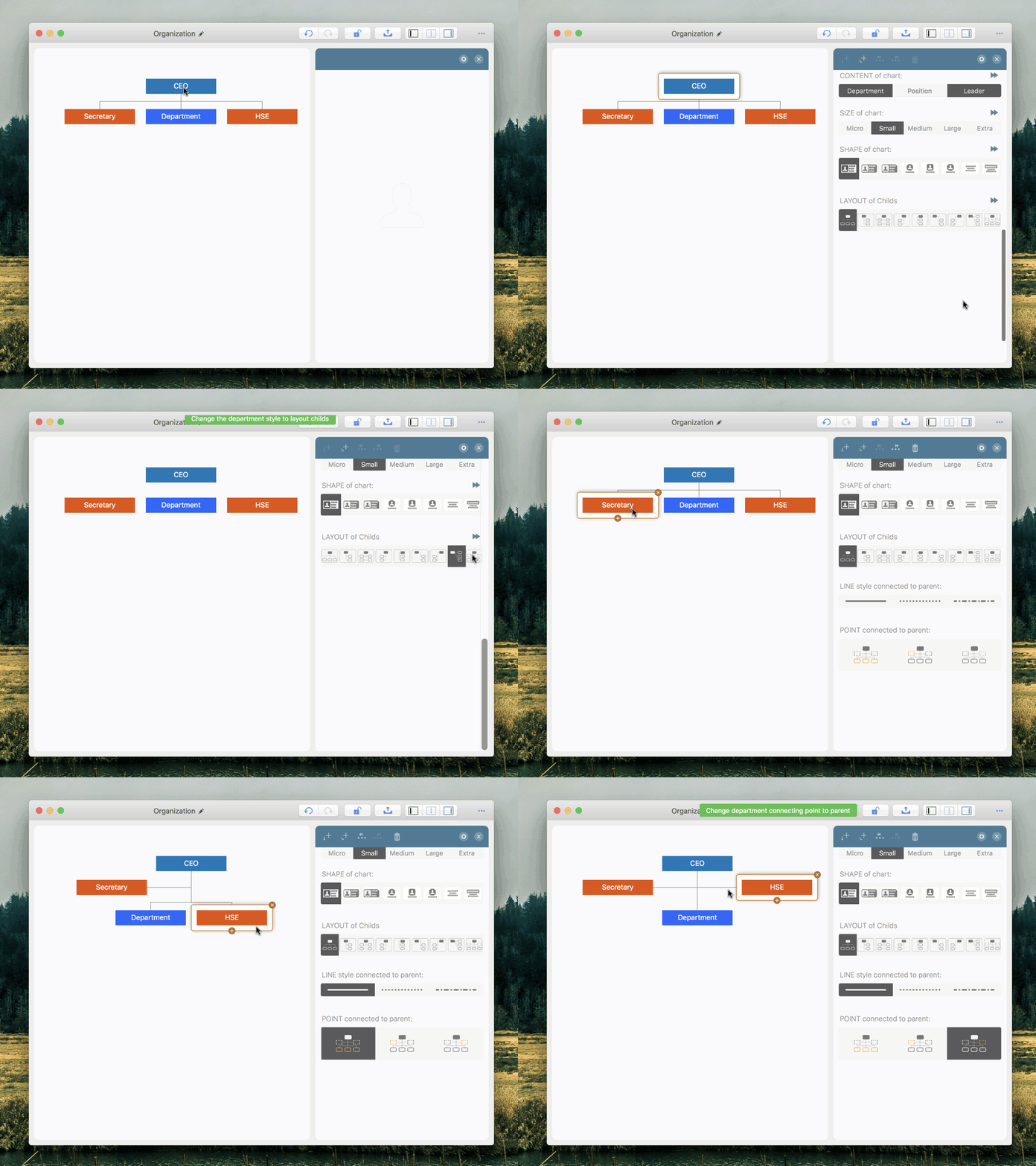
How to create assistant relationship?


  • Select the parent department, and to change the layout (which defines how to lay out children)

  • Long press on a child department, to change the connection point
Failed to open the organization file on Mac ?


If you see the following error message when opening a .org file, please manually change the file extension from "org" to "orgx".
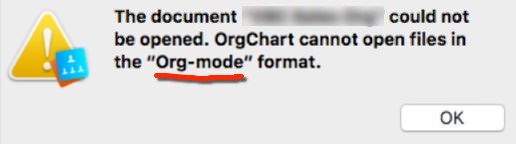
  • This issue happens because another app on your Mac has registered the ".org" extension as an "org-mode" file type for a different purpose. When opening a .org file in OrgChart, macOS then sends incorrect type information to OrgChart.
  • Unfortunately, there is no reliable system tool to modify file extension registration details in macOS.
  • This is outside OrgChart’s control because OrgChart runs in a sandboxed environment with limited permissions.
  • Fortunately, the ".orgx" extension is not currently used by other apps.

Can all the groups be collapsed together?


  • ⇧⌥⌘ → (Shift + Option + Command + Right) to expand all groups
  • ⇧⌥⌘ ← (Shift + Option + Command + Left) to collapse all groups
  • Or put five fingers on the touch pad (do not need to click, just put the fingers on the pad together)

How to sync across multiple devices via iCloud Drive?


If I own the Mac version do I need to purchase the iOS version too?


Yes, at the moment there is no way to bundle the apps from different operation systems.

How to get a refund?


We are sorry, but we can not issue a refund directly as the purchases and refunds are handled only by the Apple App Store, and you can request one by reporting a problem to Apple, and get more help from Apple support. There are also many articles related we can search via Google.com

App Purchasing, Downloading, Installation and Updating issues.


The developer and the app has no control on app purchasing, downloading, installation and Updating. Click to access Apple Support Website

Anything else?


Please Contact Us

2026 © COPYRIGHT SWIFT APPS | All Rights Reserved
Swift Apps