
Update Department Content Properties
Update Department Content Properties
We recommend all users upgrade to OrgChartX - our modern app for iPhone, iPad, Mac, and Vision Pro. It can import files from legacy OrgChart apps. This website remains available to support users who continue using the legacy apps.
This site continues supporting legacy OrgChart apps.
The Title and Visibility of Department fields
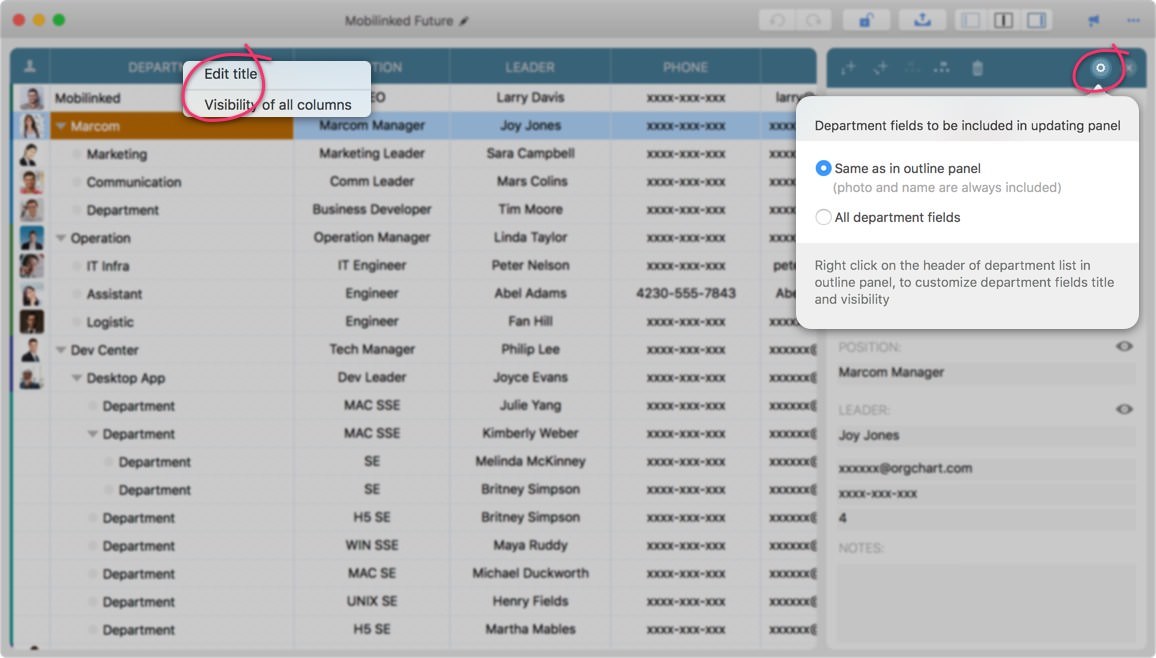
You may not need every field for a specific organization chart. You can set field visibility, and there is an option to control whether hidden fields are shown in the updating panel.
Except for the "headcount" field, all other department fields are text fields without predefined usage. You can use them as needed and customize each field title for your workflow.
Visibility and title changes apply only to the current organization chart document and do not affect other files.
Right-click a department title in the outline panel to change field titles and visibility (double-click the department title in the outline panel to edit a field title directly). There is also an option in the updating panel to show all fields or only visible fields.
You will see updated field titles reflected everywhere they are displayed.
Update Department Content on the Outline Panel
Outline Panel acts like a grid.
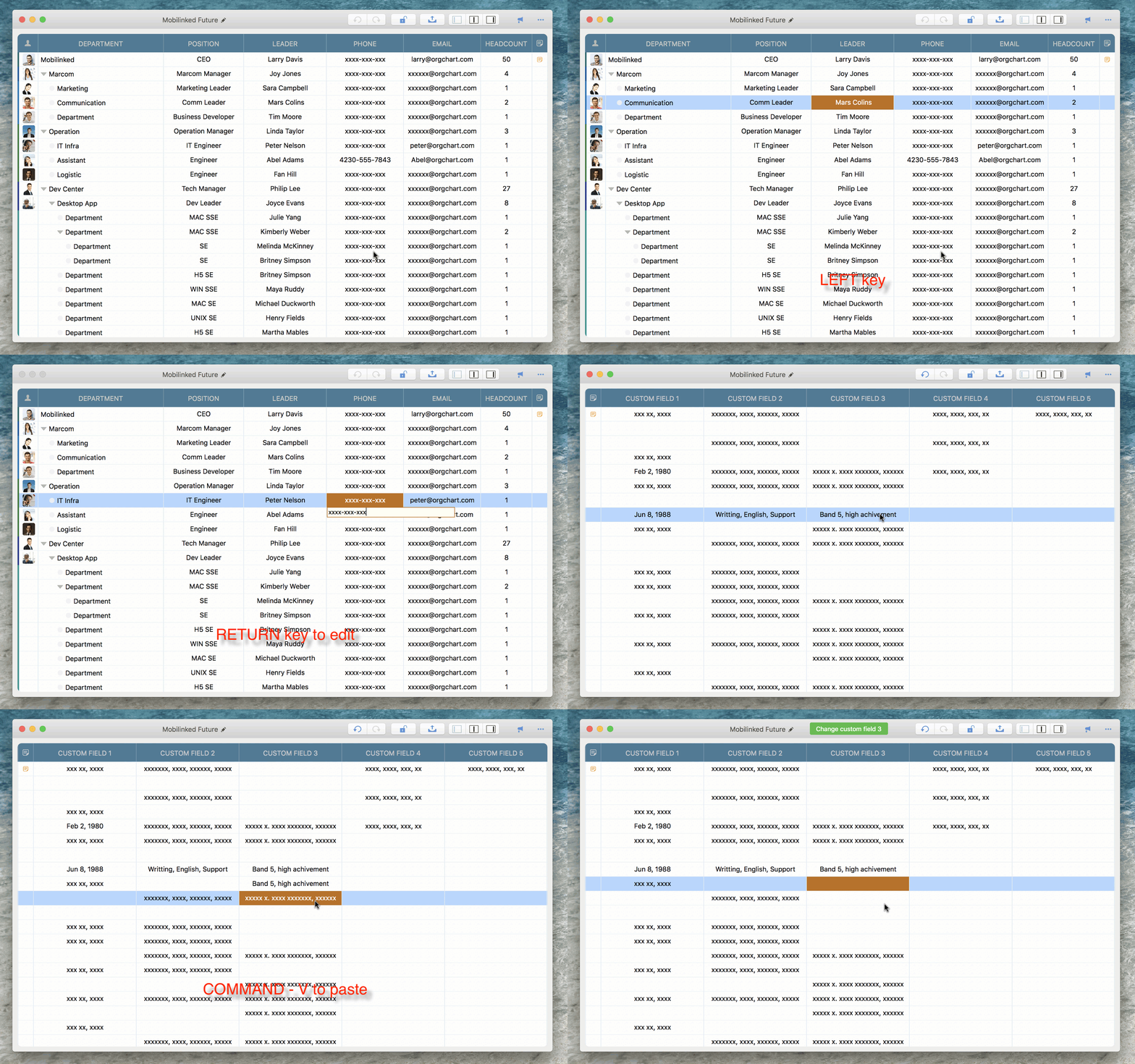
Update Department Content on Updating Panel
The updating panel acts like a property list window for editing selected department content and visual style. To open the updating panel:
Change Department Photo
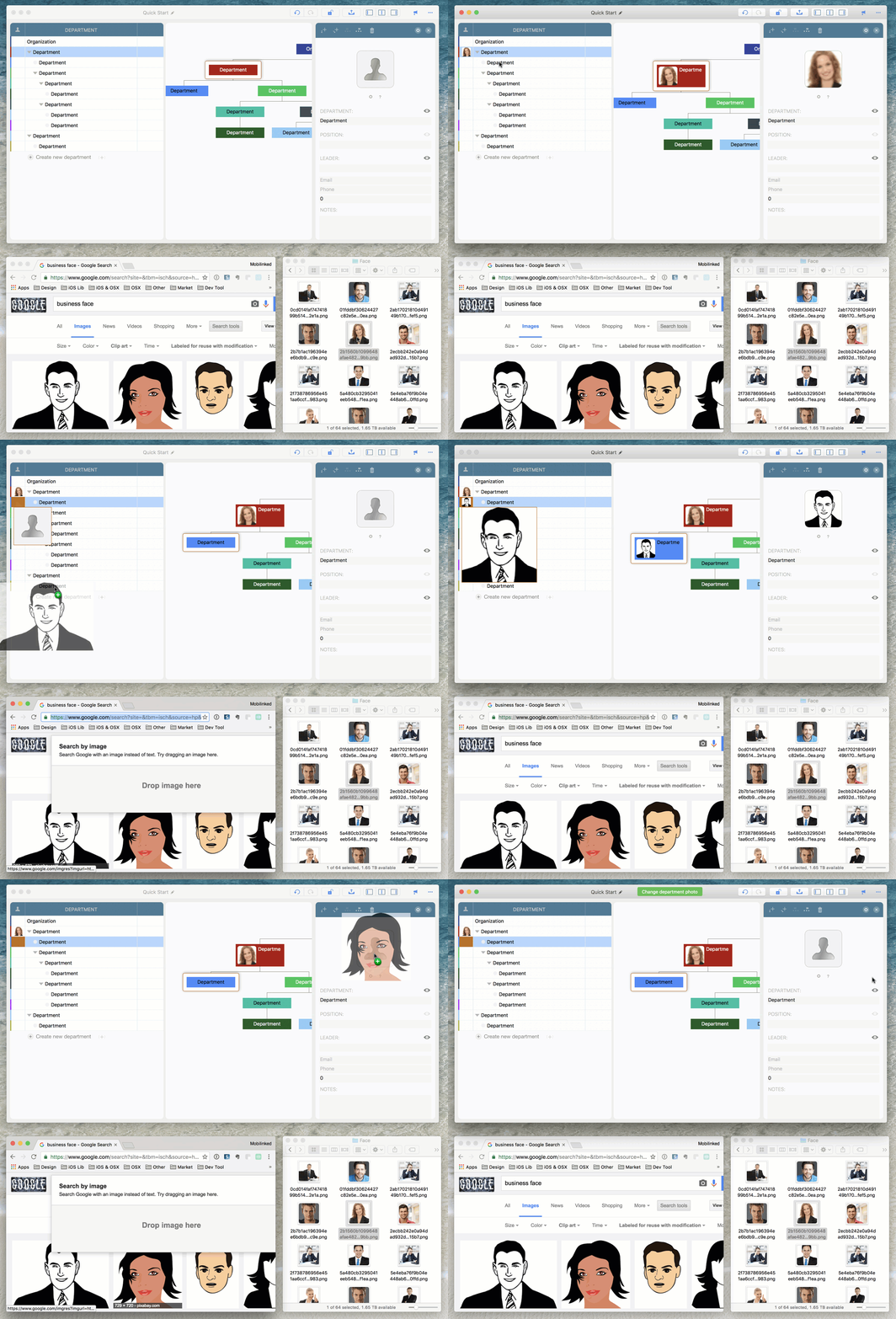
OrgChart makes photo changes very flexible. You can easily drag an image from Finder or other apps to the outline, chart, or updating panel to change the photo of a selected department.
OrgChart also provides options to control image zoom and clipping when creating a photo, including face detection.
2026 © COPYRIGHT SWIFT APPS | All Rights Reserved
Swift Apps